
Elevate your Presentations & Live Streams to a Next Level with OBS STUDIO and IPEVO
OBS Studio, combined with IPEVO's innovative products, is your ultimate solution. OBS Studio offers powerful and flexible video recording and live streaming capabilities, allowing you to create professional-grade content with ease. When paired with IPEVO’s range of high-quality document cameras, conference cameras, and interactive tools, you can deliver dynamic, engaging presentations that capture your audience’s attention. Whether you're teaching, hosting webinars, or conducting business meetings, the seamless integration of OBS Studio and IPEVO products ensures you can showcase your content with unparalleled clarity and creativity. Transform your presentations today and experience the difference!
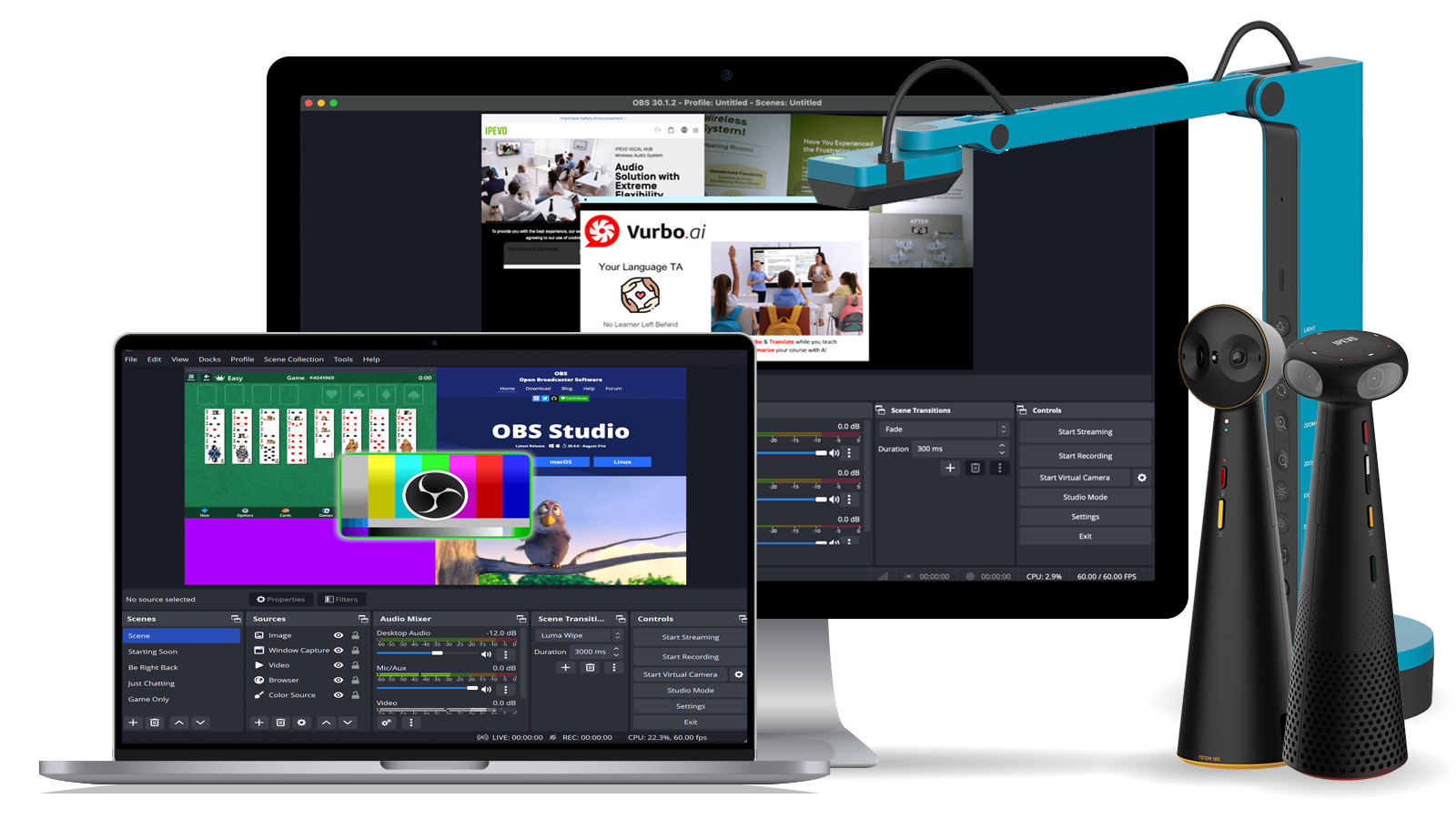

1. Download OBS Studio

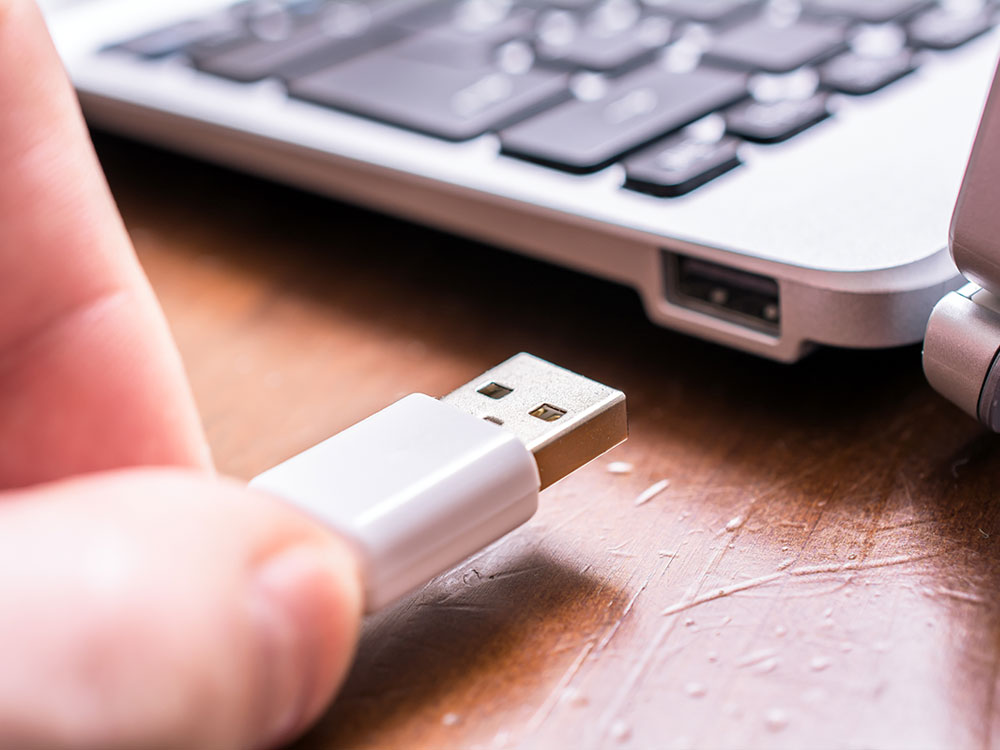
2. Connect Your IPEVO Products
3. Add Sources to Your Scenes
For IPEVO products, you can choose the Video Capture Device option and add other options according to your needs.
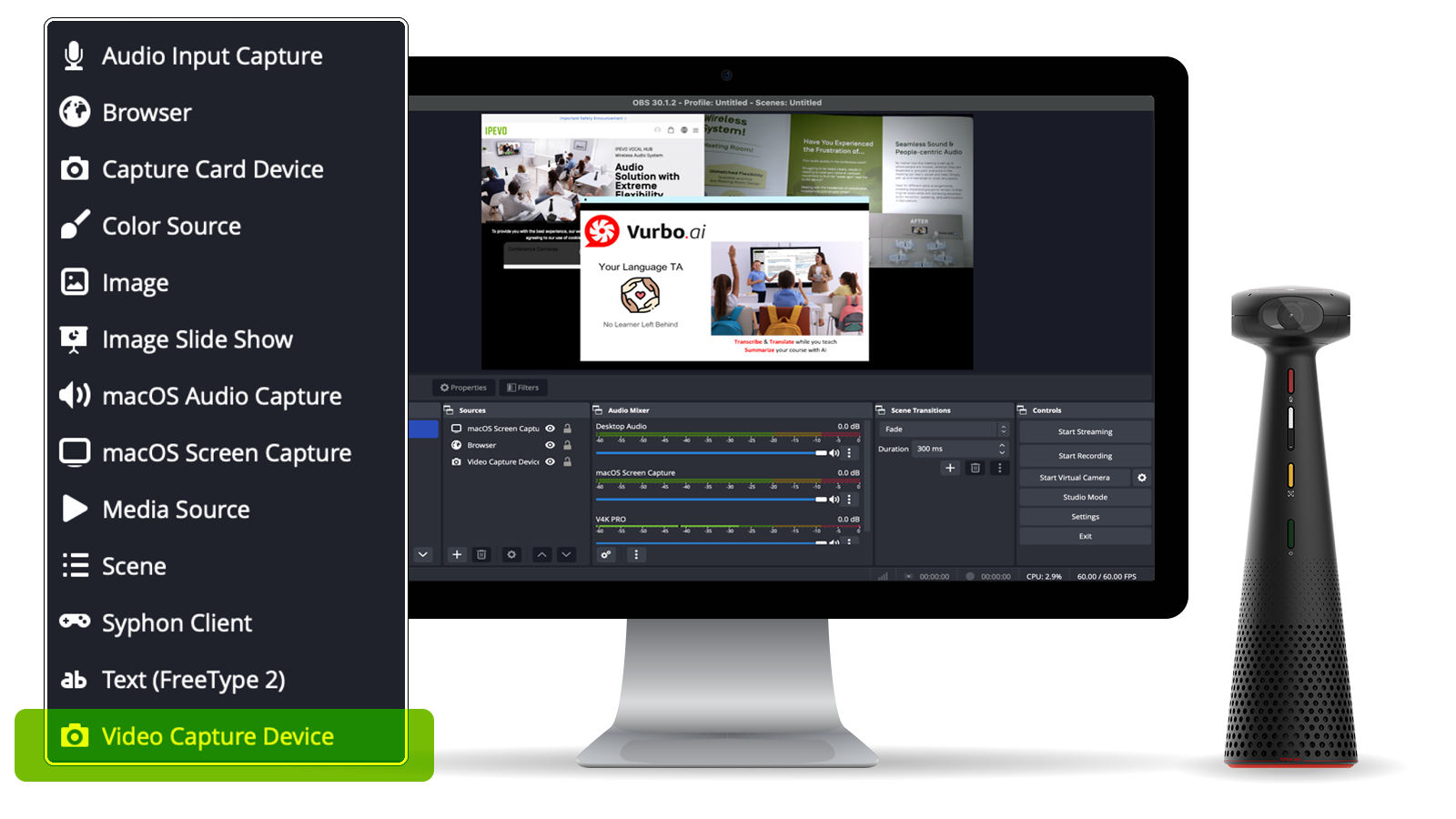
For example, displaying slideshows while projecting work through IPEVO document cameras.
4. Set Up Your Audio
By default, OBS Studio is set to capture your desktop audio and microphone. You can verify this by looking at the volume meters in the Audio Mixer at the bottom of the main OBS Studio window.
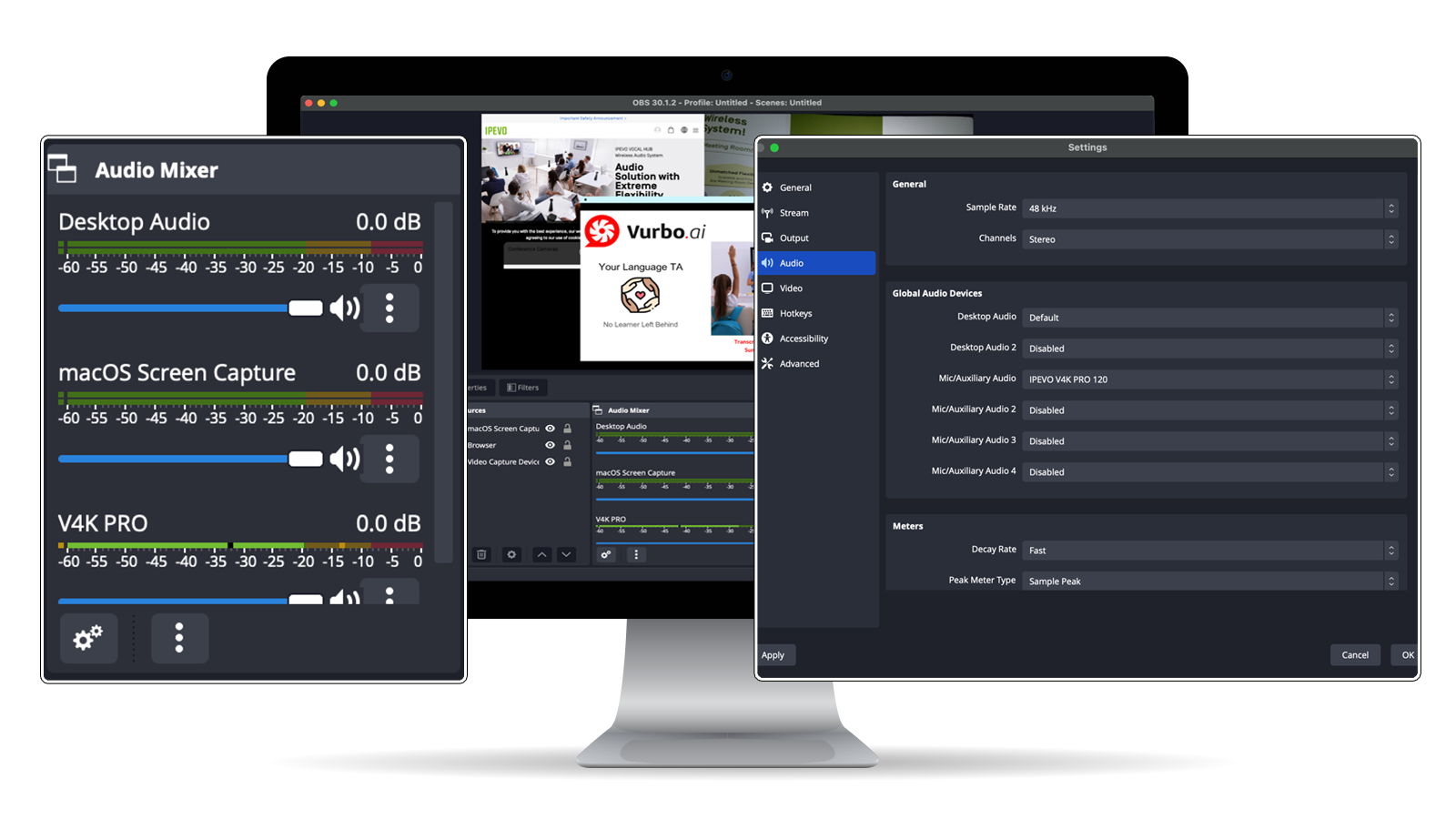
If they aren't moving, or you suspect the wrong device is being captured, click on Settings → Audio and select the devices manually.
5. Test It Out!
With OBS Studio, you have the flexibility to either livestream or record your content.
Choose the option that best suits your needs and start creating with ease!
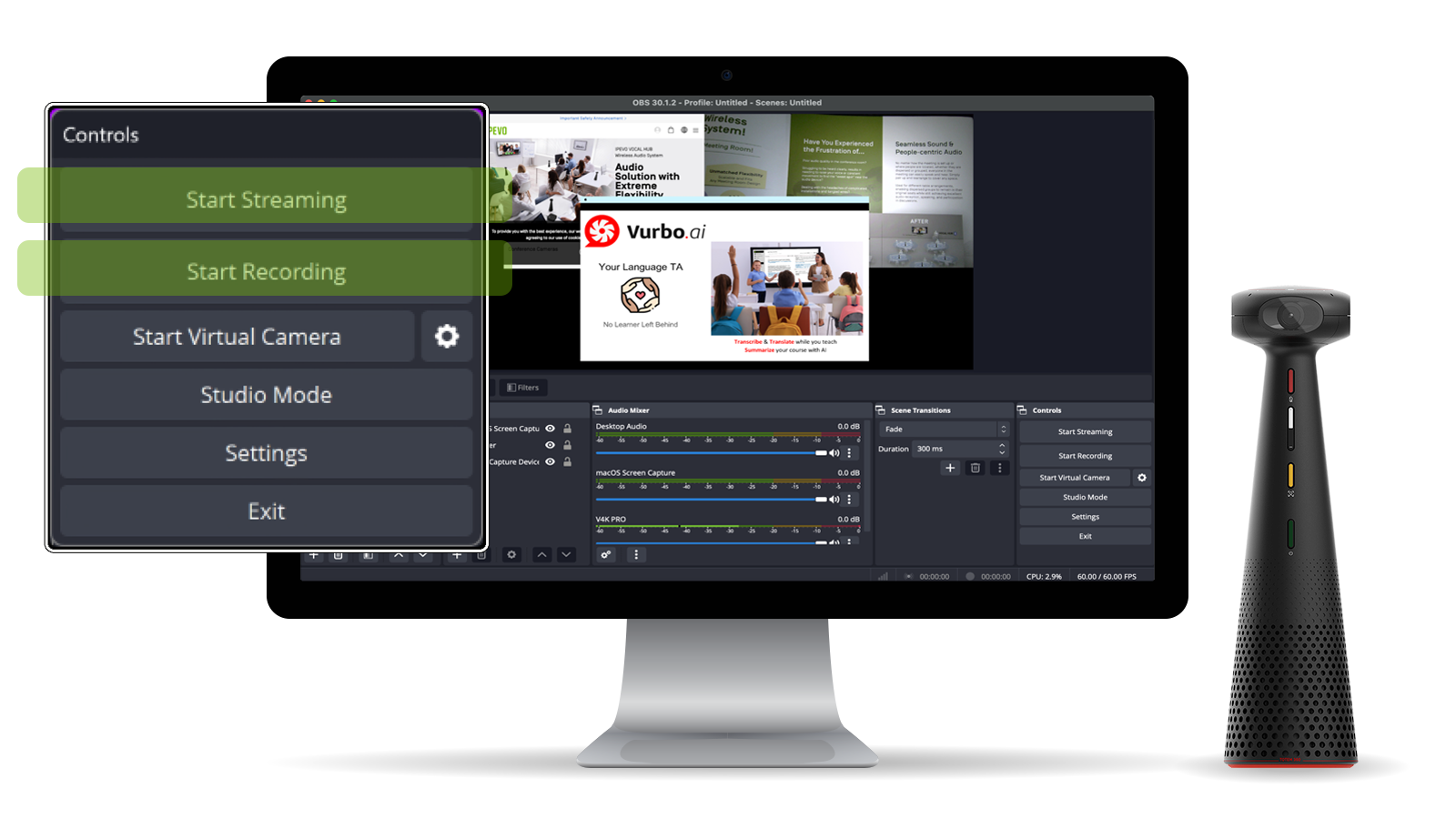
Double-check that all your settings are how you want them in Settings → Output. Then, click Start Recording or Start Streaming on the Controls Dock.
We strongly encourage running a test for a few minutes to ensure that there are no issues, rather than just jumping into your first stream or recording.
Recommended Products to Use with OBS
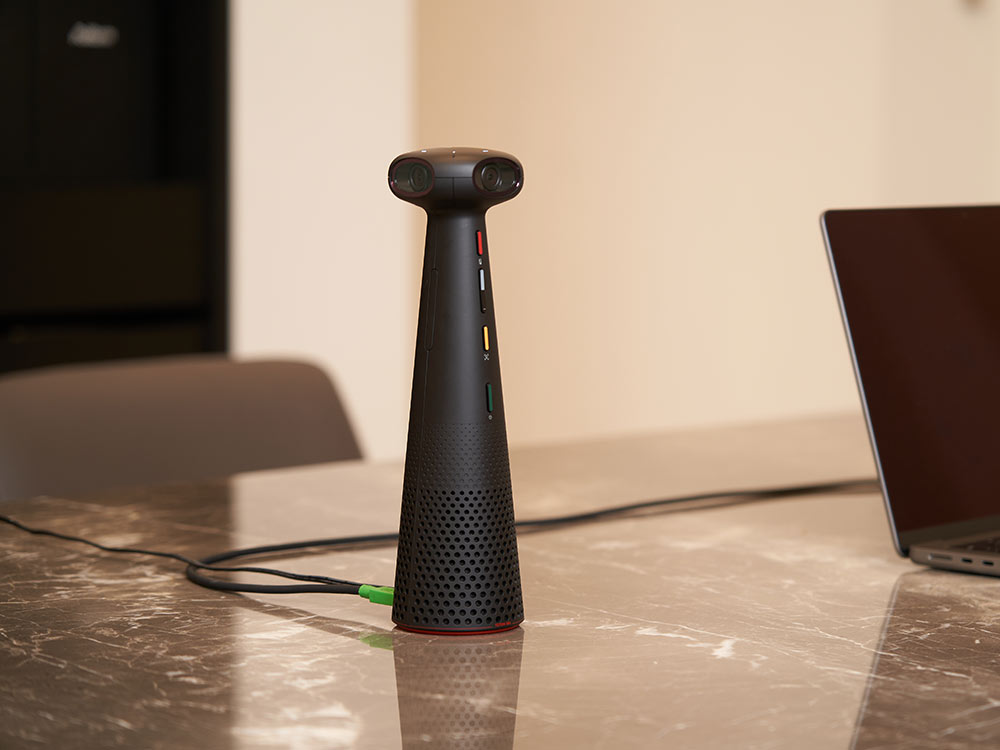
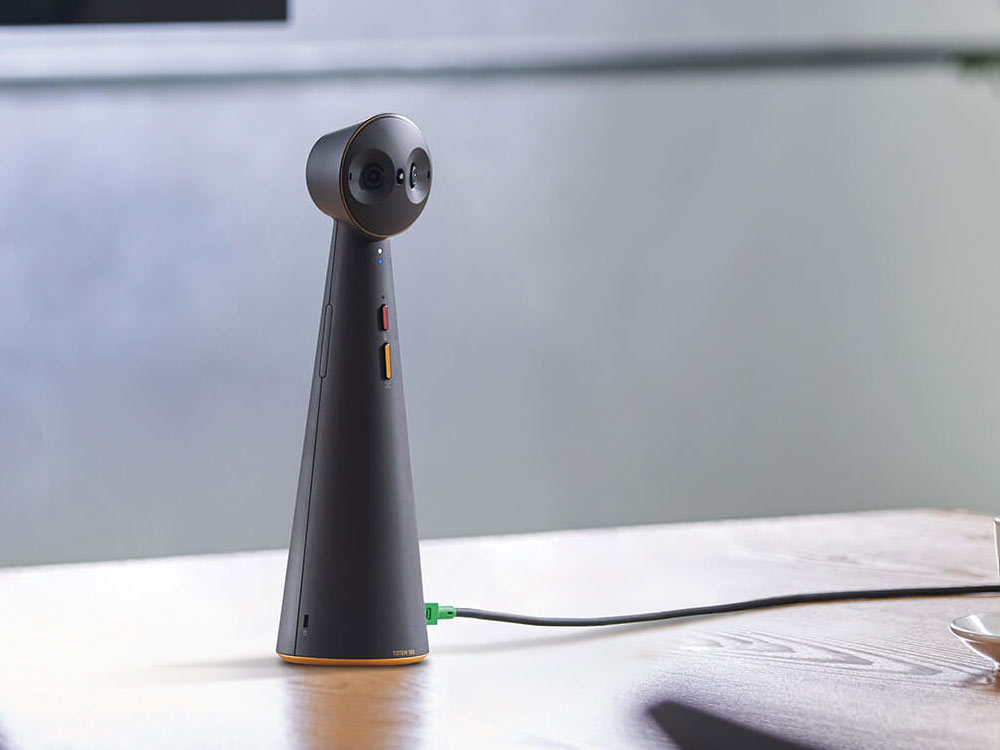
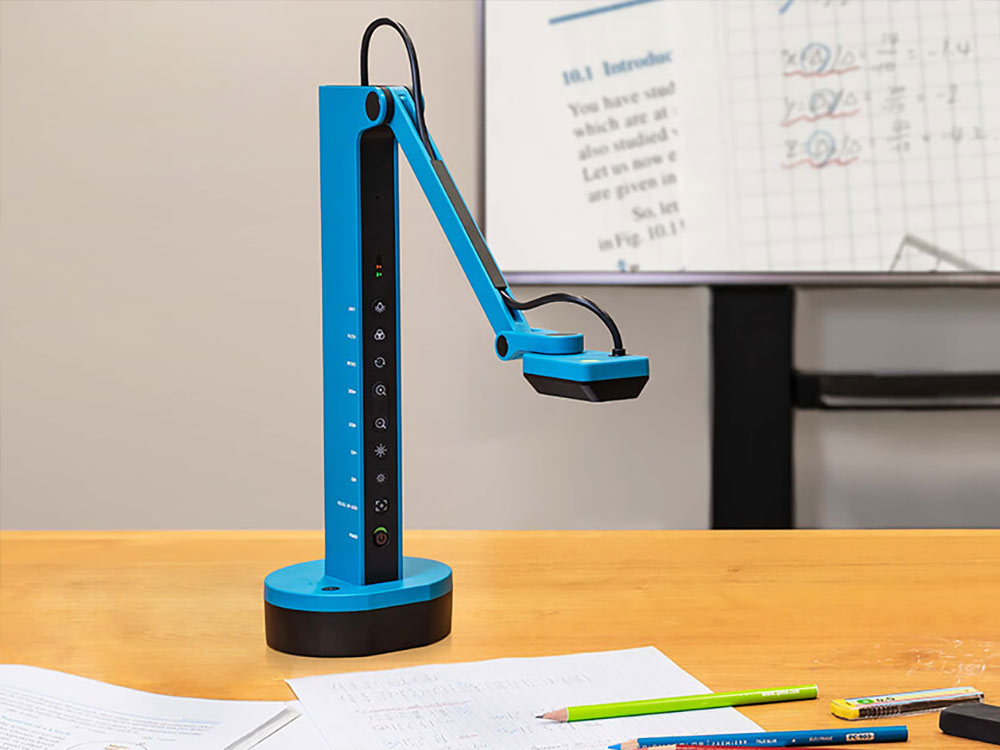
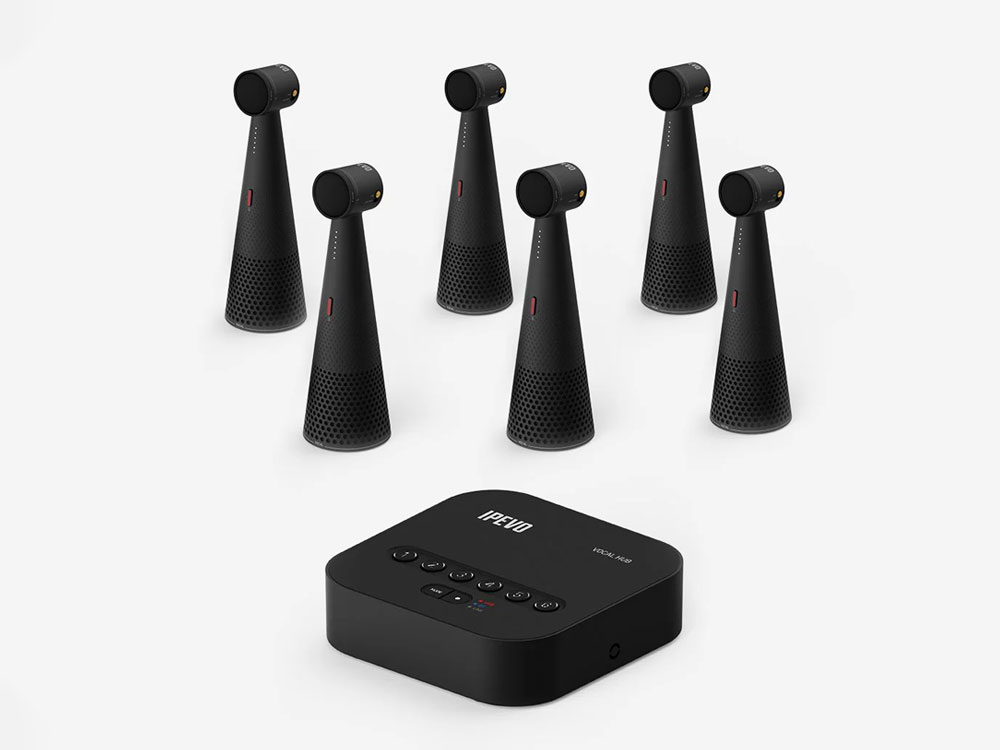
IPEVO ENSEMBLE
Scalable audio solution with 2-way noise reduction for the best audio experience.